Explore NVX
From the first waypoint
to the last mile.
Plan on vector charts, bring your instruments into view and keep a record of the passage. Here is what you can do in NVX today, and what each feature needs.
Charts
Your charts, on your device.
Read S-57 vector charts with S-52 symbols, soundings, depth areas and light sectors. Neighbouring cells are quilted into one chart view.
S-57 ENC and NVX .nav packs
Inspect chart objects and adjust symbols, labels and depth colouring to suit the view.
Bring your existing charts
Import BSB/KAP, GeoTIFF and raster MBTiles, plus PMTiles vector archives. KAP and GeoTIFF charts are converted to tiles on import; MBTiles and PMTiles are used as they are and activated from the library.
A built-in world basemap
Land, bathymetry bands and place names provide context outside installed chart coverage. Installed charts and the basemap can be viewed without an internet connection.
Chart library
Keep your chart collection organised.
Browse installed packs, inspect coverage and manage charts you have imported.
Find the chart you need
Browse by coverage, search chart names and inspect pack details.
Folder, ZIP or single file
Bring in S-57 chart sets or supported individual chart files. Manage visibility and remove imports you no longer need.
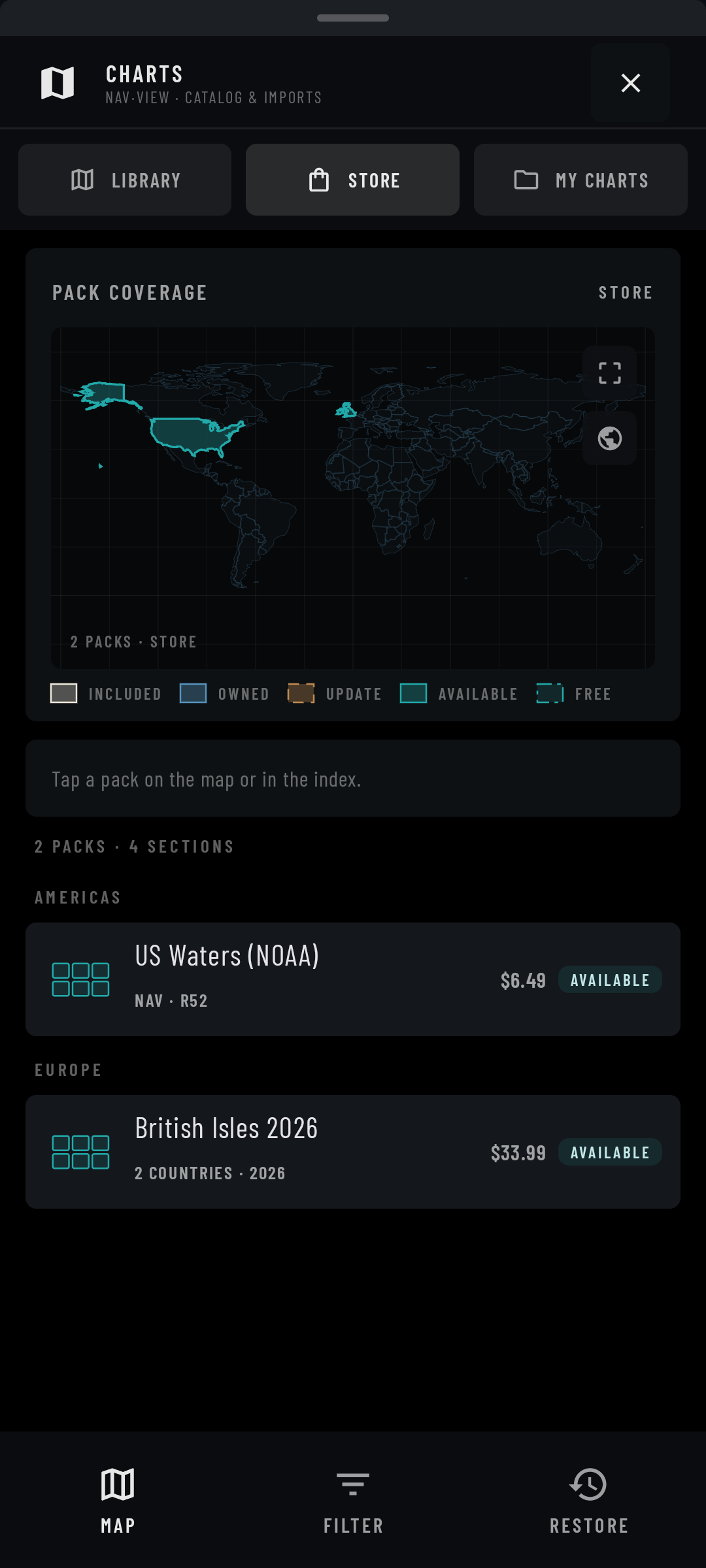
Explore regional packs
The app includes a chart catalogue and purchase interface. Check availability and pricing in the app; a catalogue entry alone does not mean a pack is ready to download.
Instruments
Keep the numbers in view.
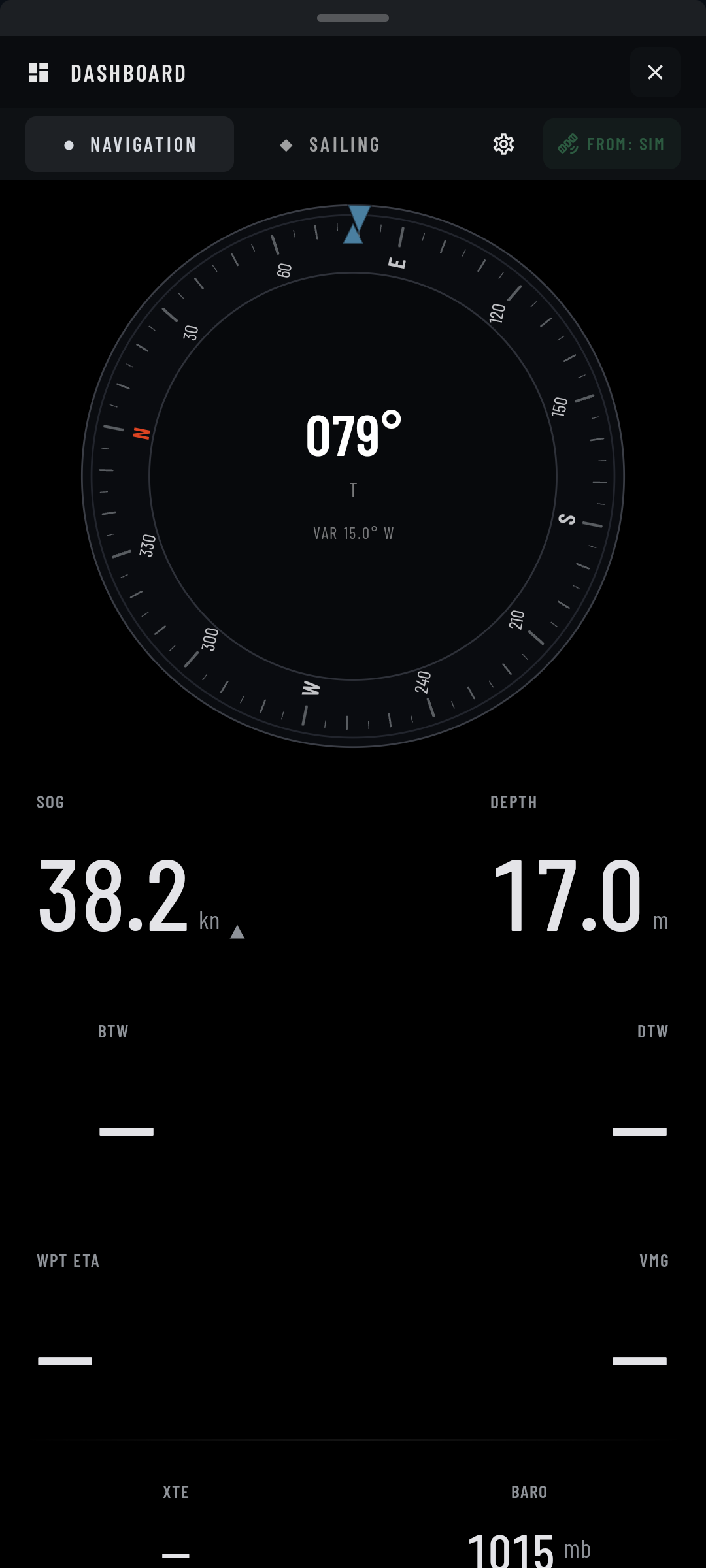
Five dashboard tabs bring navigation, sailing, motor, environment and almanac information together. Readouts depend on the data your device or connected instruments supply.
Position, speed and passage progress
See speed and course over ground, waypoint bearing and distance, depth and route information when available.
Read the boat’s instruments
View wind and sailing VMG, plus available motor data such as engine RPM and speed over ground.
Pressure, history and temperatures
Read the barometer, pressure history and air or water temperature when those sources are available.
Sun, moon and the sky above you
Sunrise, sunset, twilight, moonrise, moonset and moon phase for your position on any date. Open Sky View to see the sun and moon paths in 3D and drag to orbit the view.
Pin key readings over the chart
Pin compass, wind, depth, speed or RPM gauges from the chart-gauges menu in the Dashboard. Long-press a gauge to move it, resize it, change its type or unpin it.
A dashboard on your local network
Enable the read-only web dashboard to view available instrument data in another device’s browser on the same network.
Routes
Plan the passage. Follow its progress.
Build multi-leg routes on the chart, then compare the passage in progress with your plan.
Speeds, departure times and waypoints
Set a planned departure and route speed, with per-waypoint arrival radii and departure times where needed.
Distance, ETA and time to go
Follow the active leg and remaining passage. The passage view compares estimated arrival against the plan when usable position and speed data are available.
See cross-track error
A course deviation indicator and chart corridor show your position relative to the active leg. Choose arrival-only waypoint advance in route settings.
GPX and connected GPS outputs
Import, export and share routes as GPX. Send NMEA 0183 waypoint and route sentences through an active output connection.
Marks
Save the places that matter.
Drop a mark on the chart or at your vessel, give it a name and choose an icon you will recognise.
Position, notes and range rings
Edit coordinates, appearance, arrival radius and links. Use a mark as a destination or as part of a route.
A searchable mark library
Choose from hundreds of icons in twelve categories. Filter marks by visibility, route membership, icon, distance or date.
Control what stays visible
Set display options and enable waypoint locking to prevent accidental dragging.
Tracks
Keep a record of your passage.
Start a recording when you want to save your track. Review the distance, duration, maximum speed and recorded points afterwards.
A track that follows your turns
Choose low, medium or high precision, with GPS jump filtering and optional daily rotation.
Recording with the screen off
A foreground service records incoming position fixes. Logging still depends on your position source continuing to provide data.
Review, simplify and share
Export GPX, reduce the number of saved points, merge completed tracks or turn a track into a route.
Anchor watch
Two watch points, each with its own ring.
Set an anchor watch from your vessel or at a position on the chart. Each watch has an independent radius and mode.
Alert when you leave the ring
Place the watch at the anchor and set the permitted swing radius.
Alert when you enter the ring
Mark an area to stay clear of, with a separate watch if needed.
Visual, vibration and optional sound
Armed watches also respond to a stale position fix. Snooze each watch separately. Settings are saved and a foreground service supports monitoring with the screen off.
Man overboard
Mark a position quickly.
Hold the MOB control to drop a man-overboard marker and bring its navigation readout into view.
Bearing and distance to the mark
Keep the saved position visible on the chart while reviewing the vessel’s position relative to it.
AIS traffic
See the traffic your receiver reports.
Connect a compatible AIS data source to display nearby targets, vessel details and reported movement on the chart.
Traffic list and chart selection
Inspect vessel names, available voyage information, target tracks and course predictors.
Visual CPA and TCPA information
Compare closest point of approach and time to CPA against your thresholds when the required data is valid. CPA alerting is visual.
Use your own AIS receiver
Traffic arrives through a connected data source. The app does not provide an internet AIS feed.
GRIB weather
Put a forecast over the chart.
Import a GRIB forecast file, choose the fields to display and move through its forecast times.
Wind, pressure, waves, currents and more
Combine the available weather layers and read values at your vessel or the chart centre. Show a field as colour fill, wind barbs, contours, arrows, numbers or flowing particles. Available fields depend on the imported file.
Download externally, then import
The download flow opens an external browser. Import the downloaded GRIB file into NVX, or open a .grib or .grb2 file from your file manager. Imported forecasts are kept in a saved library and can be viewed offline.
Typical conditions, month by month
Optional climate packs use ERA5 data to show 52 weekly averages from ten years: wind, seas, temperature and rainfall, with historical gale frequency and fog and thunder indicators. These are historical averages, not a forecast.
Keep track of the file you are viewing
Check its forecast times and bring in a newer file when needed.
Fix quality
Look beyond the position dot.
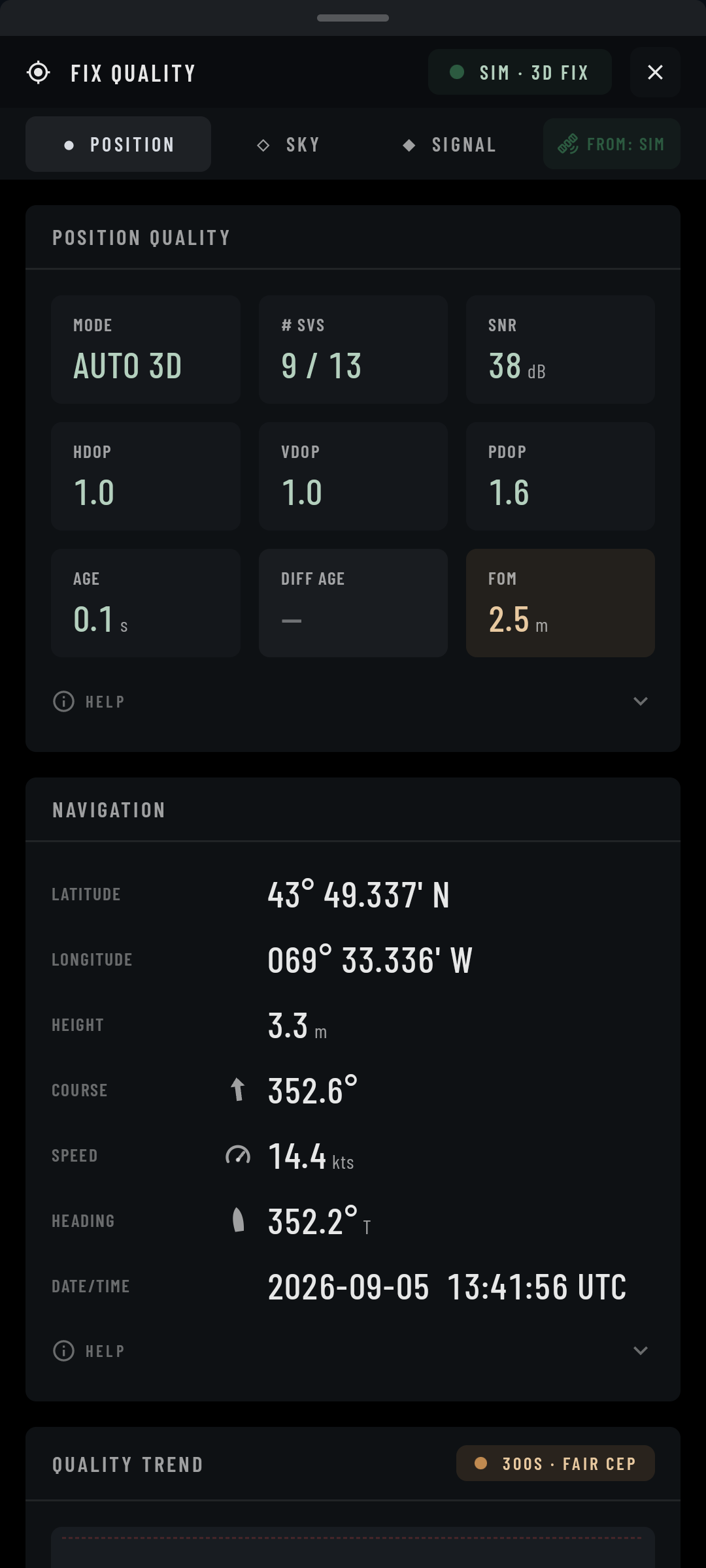
Inspect the quality information supplied by your GNSS source alongside the position used on the chart.
Mode, age and available accuracy data
Review satellite counts and dilution-of-precision readings where the source provides them.
Signal bars and a sky plot
See reported satellite signal strength, elevation and azimuth. The detail available varies by receiver and connection.
Watch how the fix changes
Quality history and diagnostic indicators help you investigate changes in reception.
Connections
Bring your boat’s data together.
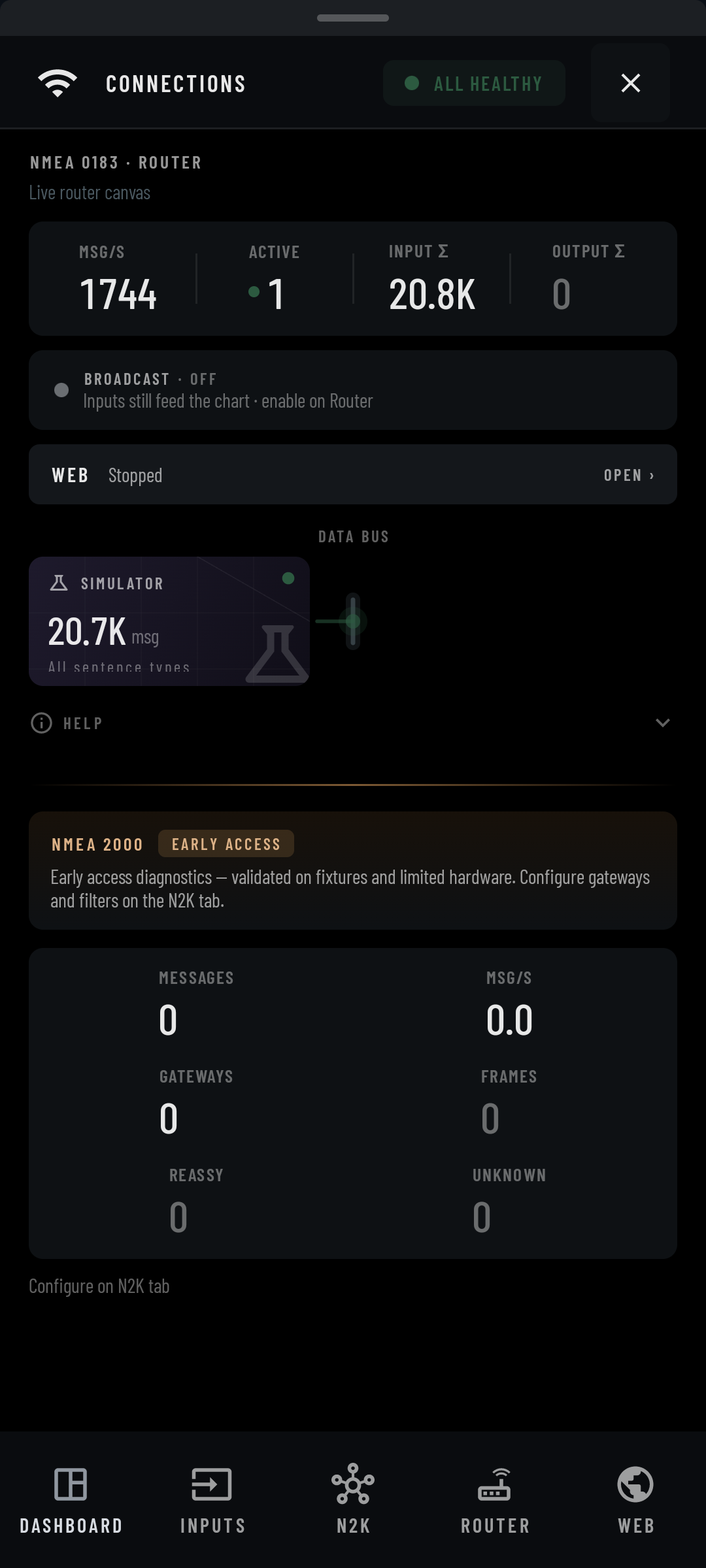
Connect supported receivers and instruments, choose data sources and forward NMEA 0183 to other equipment.
Network, Bluetooth and USB
Use TCP, UDP, Bluetooth SPP, supported BLE devices or USB serial, alongside device GNSS and the simulator.
Routing and output filters
Forward sentences through configured outputs, apply filters and record a file log.
Supported gateways · early access
Receive NMEA 2000 data through supported Actisense and Yacht Devices gateways. This is listen-only support; the app does not transmit onto the NMEA 2000 bus.
Diagnostics
See what is coming through.
Inspect incoming data and connection activity when a reading is missing or a source needs attention.
Read the incoming sentences
Inspect raw NMEA traffic and decoded values to understand what your connected sources are sending.
Find the connection behind a reading
Review source activity, routing status and available NMEA 2000 diagnostic information.
Chart tools
Measure a leg. Read a chart object.
Long-press the chart to access tools for marks, routes, anchor watch, object queries and measurement.
Inspect what the chart says
Read decoded S-57 attributes and chart notes for lights, buoys, depth areas, wrecks and other chart objects.
Range and bearing across several legs
Review per-leg and total distance. Undo a point or convert the measurement into a route.
Chart display
Make the chart readable for you.
Adjust the chart presentation for the light, scale and level of detail you need.
Day, Dusk, Night, Dark and Paper
Switch chart colours and adjust symbol and text scale.
Choose the information in view
Set display category, soundings, chart text, chart outlines and light presentation.
North-up, head-up or course-up
Choose the chart orientation and adjust following and look-ahead. Zoom behaviour is set in Settings.
Your vessel
Set up your own-ship display.
Save vessel profiles with dimensions and GPS offsets, then switch between boats when needed.
Dimensions, appearance and predictors
Set hull length and beam, customise the symbol and choose heading or course predictors and range rings.
Help & settings
The guide comes with you.
Read the bundled guide without an internet connection, and adjust the display and units in the app.
Search and browse the manual
Search topics by title and browse the guide by outline.
Readings in familiar units
Choose distance, speed, depth, temperature and pressure units, with true, magnetic or combined bearing displays.
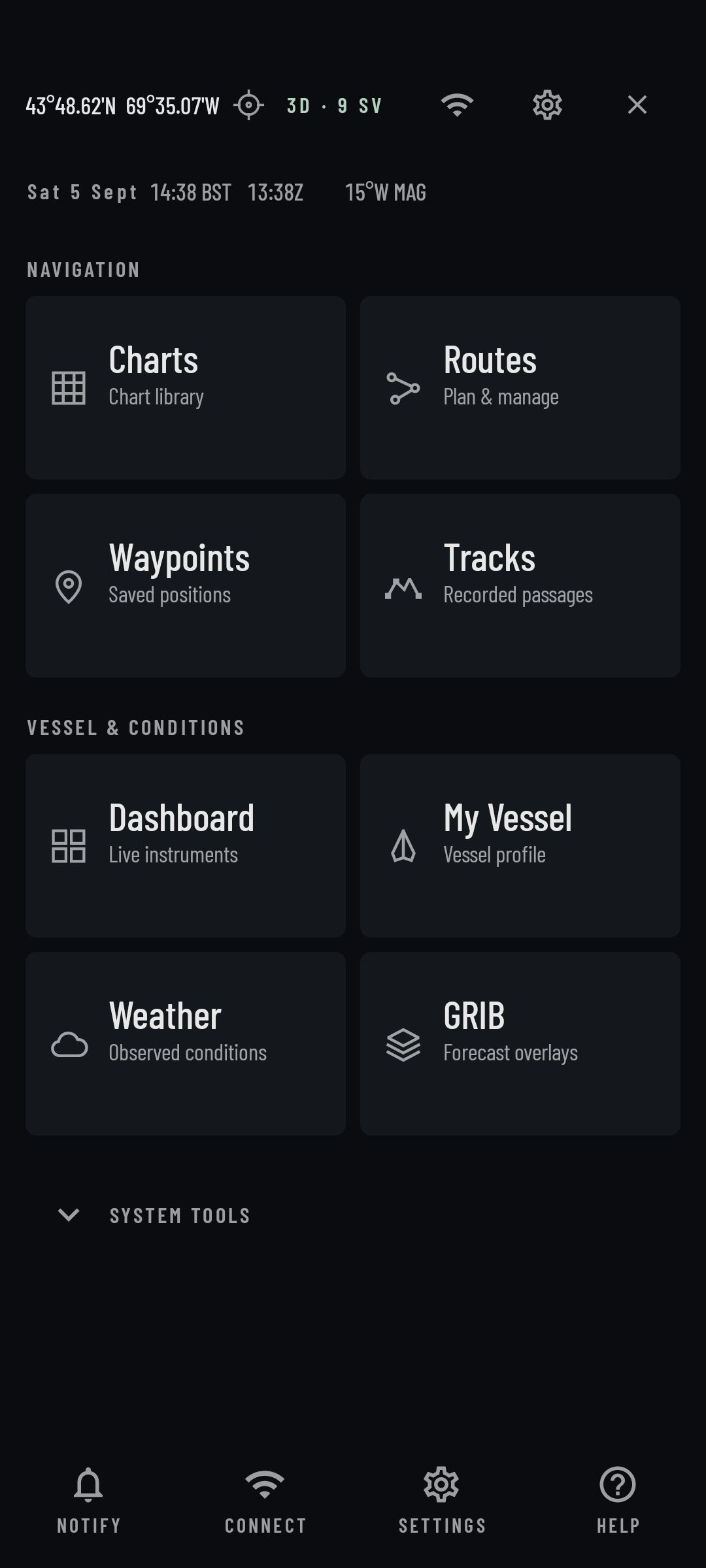
Platform
Made for Android phones and tablets.
| Android | Android 8.0 or later · 64-bit ARM |
|---|---|
| Layouts | Phone and tablet · portrait and landscape |
| Offline use | Installed charts, the basemap, saved routes and tracks, imported forecasts and the bundled guide |
| Live data | Position needs an active source. AIS and boat instrument readings need compatible connected equipment. |
| Chart packs | Check the app for regional coverage, availability and pricing. |